This guide outlines where PCIe link speed can be found in Blackcore Systems.
The PCIe link speed might need to be forced to a specific generation for some PCIe cards to avoid training at the wrong speed.
This is achievable VIA the BIOS.
For a better understanding of available PCIe lanes and locations, please look up the corresponding PCIe Layout Guides
This Guide Covers the following Systems:
      SPR-M
      SPR-X
      RPL
ICON:
      3100-RL+
      3100-SM+
      3100-SX+
      3100-GM
ACE:
      3100-RZ / RZX
      3100-TX
      3100-TS+
      3100-TX+
TABLE OF CONTENTS
ICON:
3100-RL+
The 3100-RL+ and the
- Enter the BIOS by pressing "F2" during boot.
- Navigate to "Advanced -> PCH Configuration"
- Enter into "PCI Express Configuration"
- This will let you change the Link speeds for PCIEX16 [G4] and the M.2 Slots on the board.
- To change the other two PCIE link speeds, you will need to navigate to "Advanced -> System Agent (SA) Configuration"
- Then into "PCI Express Configuration"
- In here, you can highlight the "Link Speed = [Auto]" for your desired PCIe port or M.2 port.
- Change the value to the desired Gen.
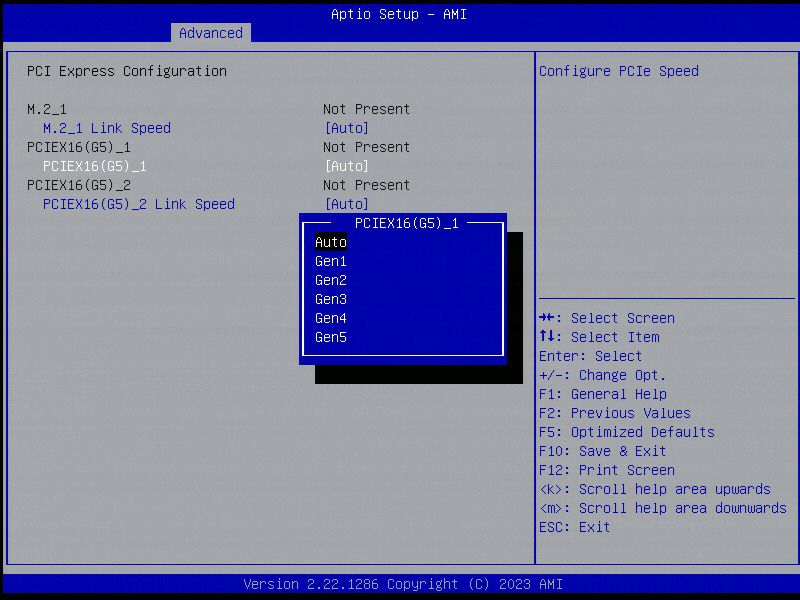
- Save the changes to the BIOS via the "Save Changes and Exit" option on the "Exit" tab.
- The system will then restart, and the change will be applied.
3100-SM+ / SX+
The SPR-M/SPR-X and the 3100-SM+/SX+ systems use the same Motherboard.
- Enter the BIOS by pressing "F2" during boot.
- Navigate to "Socket Config -> IIO Configuration -> Socket 0 Configuration".
- Highlight the "Link Speed = [Auto]" for your desired PCIe port.
- Change the value to the desired Gen. For example "Gen 3 (8 GT/s)".
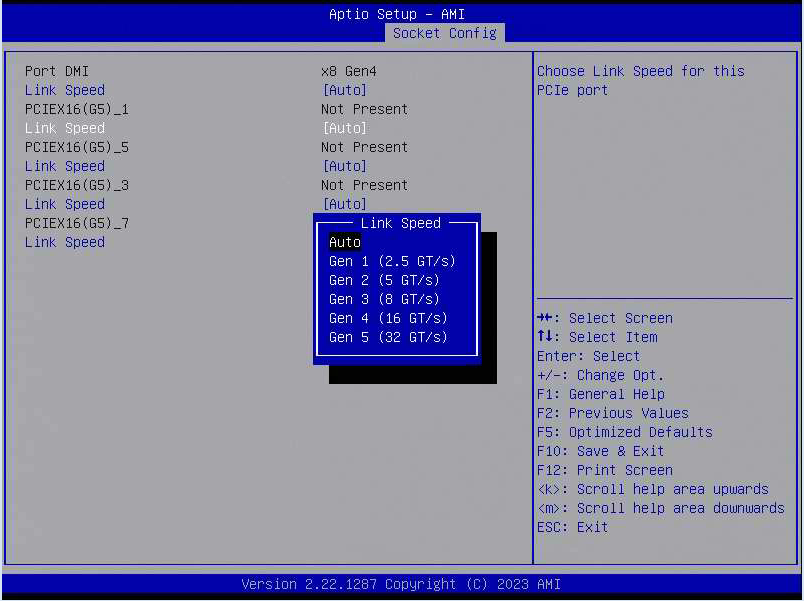
- Save the changes to the BIOS via the "Save Changes and Exit" option on the "Exit" tab.
- The system will then restart, and the change will be applied.
3100-GM
- Enter the BIOS by pressing "F2" during boot.
- Navigate to "Socket Config -> IIO Configuration -> Socket 0 Configuration".
- Highlight the "Link Speed = [Auto]" for your desired PCIe port.
- Change the value to the desired Gen. For example "Gen 3 (8 GT/s)".
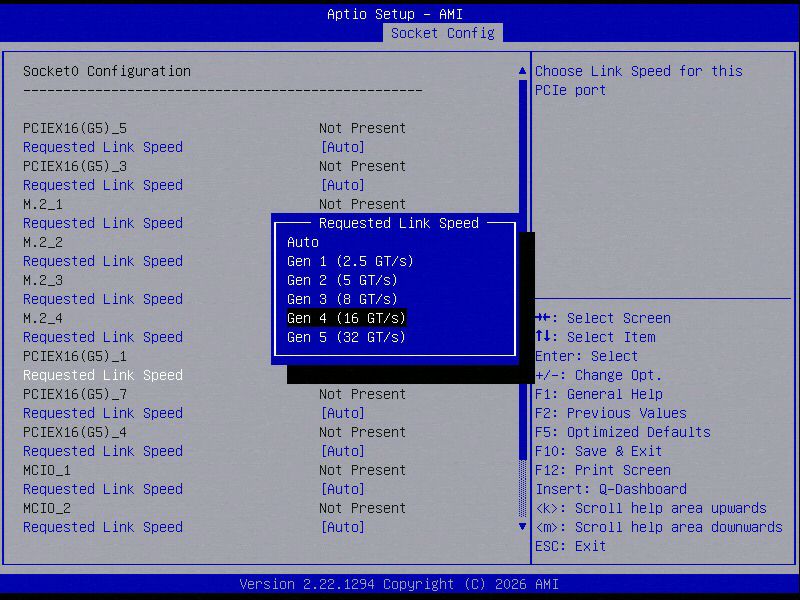
- Save the changes to the BIOS via the "Save Changes and Exit" option on the "Exit" tab.
- The system will then restart, and the change will be applied.
ACE:
3100-RZ / RZX
- Enter the BIOS by pressing "F2" during boot.
- Navigate to "Advanced -> PCIE Link Speed".
- Highlight the "Link Mode = [Auto]" for your desired PCIe port.
- Change the value to the desired Gen speed. For example, "Gen 3"
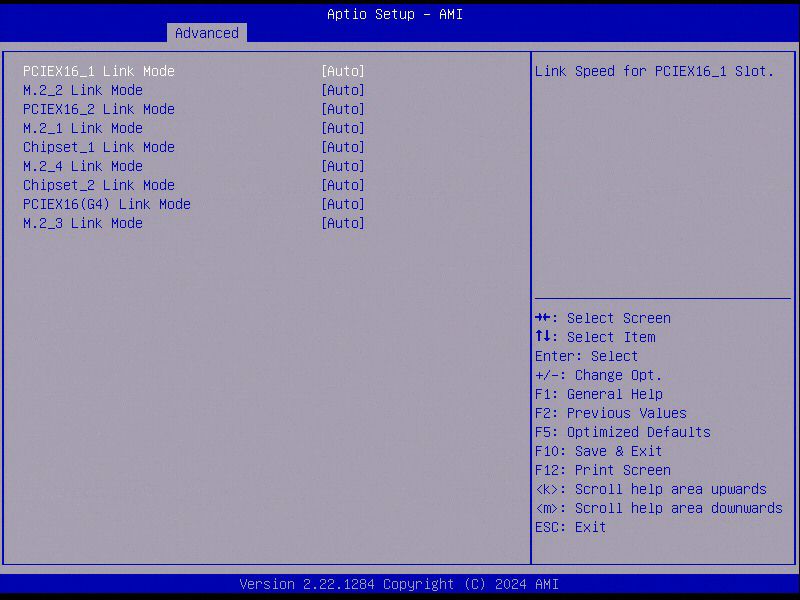
- Save the changes to the BIOS via the "Save Changes and Exit" option on the "Exit" tab.
- The system will then restart, and the change will be applied.
3100-TX / TX+ / TS+
- Enter the BIOS by pressing "F2" during boot.
- Navigate to "Advanced -> Onboard Devices Configuration"
- The Navigate to "PCIE Link Speed"
- Highlight the "Link Mode = [Auto]" for your desired PCIe port.
- Change the value to what Gen speed you desire.
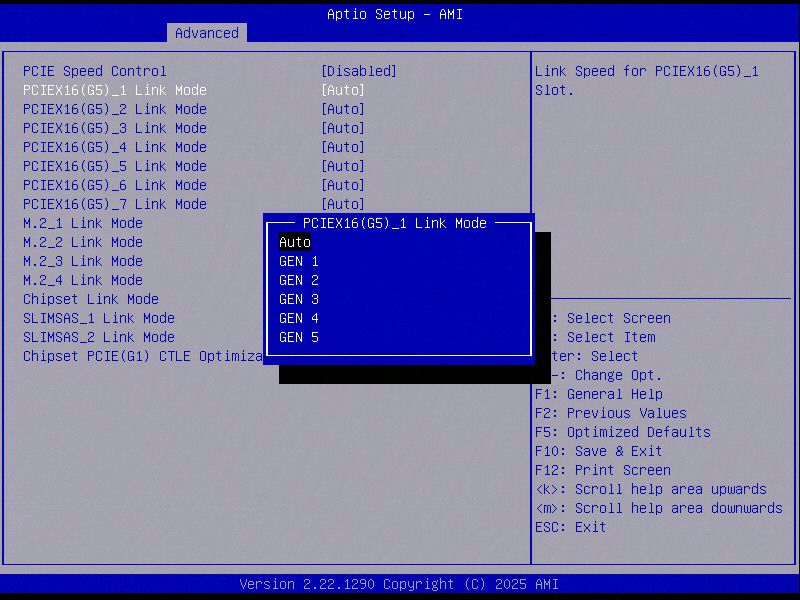
- Save the changes to the BIOS via the "Save Changes and Exit" option on the "Exit" tab.
- The system will then restart, and the change will be applied.
Was this article helpful?
That’s Great!
Thank you for your feedback
Sorry! We couldn't be helpful
Thank you for your feedback
Feedback sent
We appreciate your effort and will try to fix the article