Before starting please note that the Broadcom 9560-8i configuration can only be changed in UEFI mode. Make sure to either Disable CSM or set Boot from Storage Devices to UEFI Only before continuing.
1. Enter the BIOS
Boot the system and enter the BIOS setup.
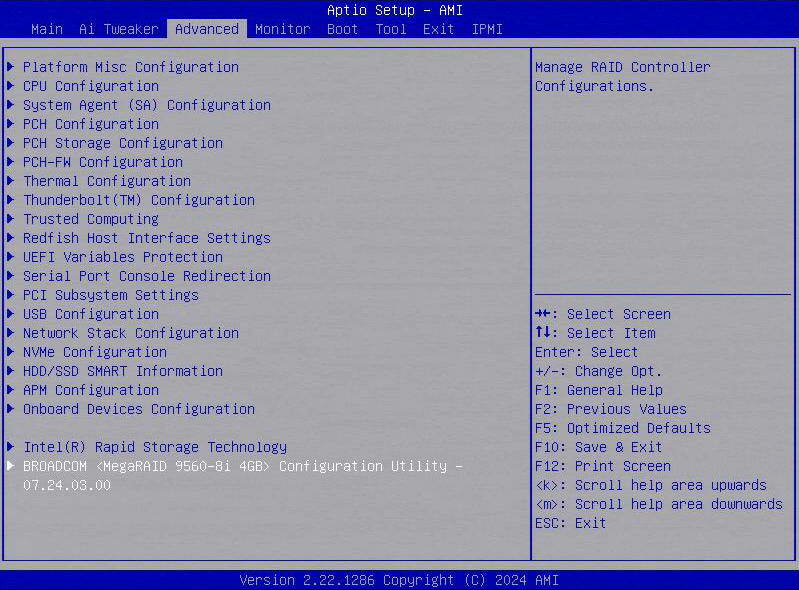
Navigate to the Advanced tab.
Scroll to the bottom of the page and select the Broadcom 9560-8i RAID controller.
2. Access Virtual Drive Management
From the controller menu, select Main Menu.
Choose Virtual Drive Management.
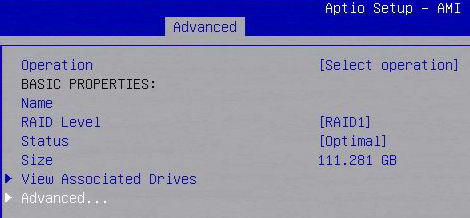
Select the relevant Virtual Drive, then navigate to Advanced.
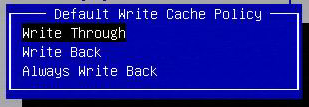
3. Scroll down to the Virtual Drive Policies, and set Default Write Cache Policy to either Write Back or Write Through depending on what mode you need.
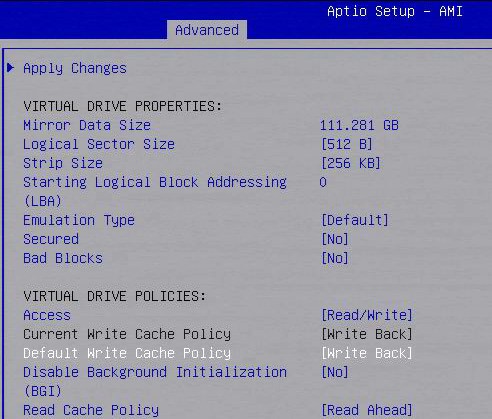
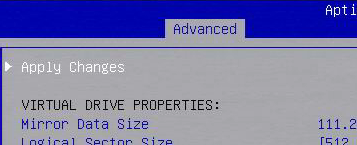
4. Select Apply Changes for the change to take effect.
Was this article helpful?
That’s Great!
Thank you for your feedback
Sorry! We couldn't be helpful
Thank you for your feedback
Feedback sent
We appreciate your effort and will try to fix the article